Localization Window
Use the Localization Window in the Debug menu to preview your latest POEditor edits in PixiEditor.
You can also replace all localized terms in the app with their keys.
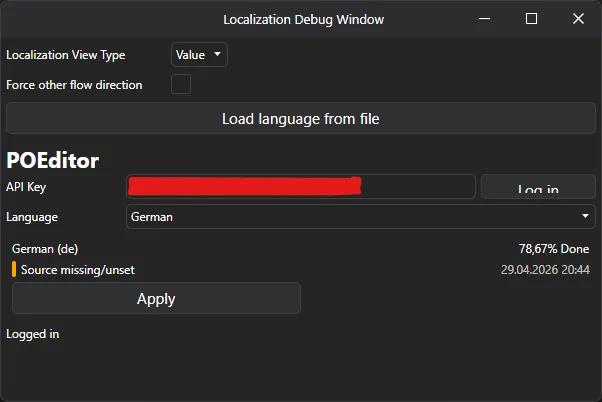
Previewing a language
Section titled “Previewing a language”To preview a language, follow these steps:
- Paste API Key
- Press
Log in - Select your language from the Language drop-down
- Press
Applyto download and replace all terms with the latest version from POEditor.
If you change terms in POEditor, press Apply again.
Options
Section titled “Options”Localization View Type
Section titled “Localization View Type”Use this option to choose how localization text appears:
- Value: Shows localized terms (for example,
Autosave). - ValueKey: Shows localized terms and keys (for example,
Autosave (AUTOSAVE_SETTINGS_HEADER)). - Key: Shows only the key (for example,
AUTOSAVE_SETTINGS_HEADER). - LALALA: Replaces all text with long strings. This option is mainly for UI development.
API Key
Section titled “API Key”You get this key when you become a translator.
Do not share this key with anyone.
Language
Section titled “Language”Use this option to select the language to preview.
Force other flow direction
Section titled “Force other flow direction”Use this option to switch between Left-to-Right (LTR) and Right-to-Left (RTL) layouts. This option is mainly for UI development.
Enabling Debug Mode
Section titled “Enabling Debug Mode”To enable Debug mode, go to Settings > General > Enable Debug mode at the bottom of the page.